ChatGPT or Copilot for an Ontario Small Business
Quick answer: Choose ChatGPT or Microsoft Copilot based on where your team already works, not on a feature list. If most of the day is spent in Outlook, Teams, Word and Excel, Copilot often fits better. If not, ChatGPT or another assistant is usually simpler. Then move people onto business accounts, write a one page set of rules, train on real tasks and check what stuck after 30 days.
Many Ontario small businesses already have both tools in play, just not on purpose. One person drafts emails in a personal ChatGPT account. Someone else summarises a Teams meeting with Copilot. A third person pastes a client note into a free tool on their phone. Nobody chose a standard, and nobody can see clearly where company information is going.
You do not need a large IT project. You need a decision about which tool the company will support, a few practical rules, and a short rollout that starts with real work.
Start with the tasks, not the licences
The most common mistake is buying a seat for everyone first and hoping the uses will appear later. Unused licences are expensive, and a tool that was never tied to a real task is easy to ignore.
Spend an hour with each team, or send a short questionnaire, and list the work that involves a lot of writing, rewriting, summarising or searching across files. Good first candidates are common, low risk and easy to check, such as a first draft of a quote cover email or a tidy version of meeting notes. Deciding a refund or entering a client's private details is not a good first use.
Pick three to five tasks per role. Those tasks are what you will test the tools against, and what you will train on later. If you want a structured way to map the work, the free Process Playbook walks through a process step by step.
When Microsoft Copilot is the better fit
Microsoft Copilot is most useful when the work already lives in Microsoft 365. If your team spends the day in Outlook, Teams, Word, Excel and SharePoint, a Copilot licence can sit inside those apps. People do not have to copy text into a separate chat window, which keeps the work closer to the file or email it came from.
It also helps when someone already administers Microsoft 365 for the company. Adding Copilot is then a change to a system you already own, rather than a new tool to manage. Copilot is a weaker fit when the team barely uses Microsoft 365, or when the work lives in many different systems.
When ChatGPT or another assistant is simpler
ChatGPT, on a company workspace rather than personal accounts, is often the simpler choice for teams that do not live in Microsoft 365, or that want one assistant for writing and summary work. It can be enough when the first jobs are drafting, rewriting and summarising, and those jobs do not depend on being inside Outlook or Excel.
The same test applies to other assistants: do they handle your real tasks well, can the company control the accounts, and can you explain the data rules in plain language? If people are already using personal ChatGPT accounts, the first move is getting that use onto a workspace the company controls. We wrote about that step in ChatGPT Business for small teams.
Compare both against the same work
Take two or three of the tasks you listed, strip out names, account numbers and anything confidential, and try the same prompt in both tools, or in the one you already have access to. Then ask:
- Did it save time on a first draft, or did it create rework?
- Were the facts, dates and figures faithful to the source?
- Did people have to copy work out of the app they were already in?
- Who can grant access, remove a departing staff member and see who is using it?
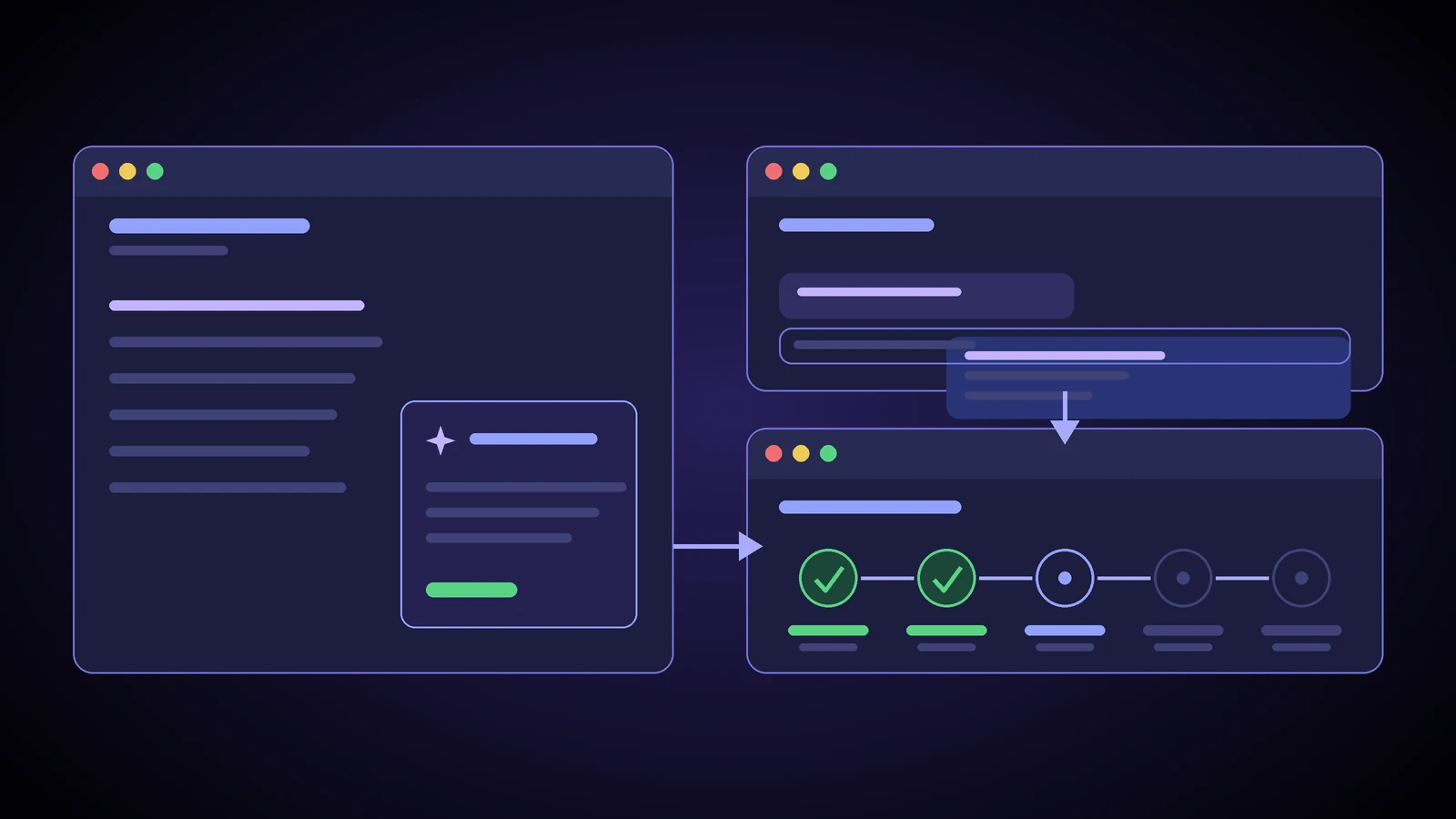
A week of real trials on actual tasks will tell you more than a feature page. Our ChatGPT and Copilot rollout page sets out this same sequence: choose the tool, move to business accounts, write a short policy, train, then check after 30 days.
Here is a hypothetical example. An office team of 12 at a Hamilton professional services firm lives in Outlook and Teams, and spends Monday mornings turning meeting notes into client emails. They try Copilot inside those apps, and ChatGPT on the same notes with client names removed. Copilot wins because the work already lives in Microsoft 365. A nearby trades office on a different email system might reach the opposite conclusion, because a general assistant is simpler than changing how they work just to use Copilot.
Move to business accounts before you scale
Personal accounts make it hard to control data and to remove access when someone leaves. Once you have chosen a tool, put it on business accounts the company owns, with a named person who can add and remove users.
Be careful with personal information. Under PIPEDA, a business is responsible for personal information under its control. That is not legal advice, and the details depend on the account type, the settings and the data. The practical starting point is: use company accounts, keep health information, banking details, social insurance numbers and other confidential client data out unless the tool has been approved for that use, and check every output before it goes to a customer.
Write a one page policy, then train on real tasks
Before you hand out licences more widely, write a one page set of rules. Say which tool is approved, what never goes in, which outputs always need a human check, and who to ask. Keep it short enough that people will actually read it. Our page on AI governance for Canadian businesses explains what a light, practical set of rules looks like.
Then train on the same tasks you used to choose the tool. Short, hands on sessions work better than one long training day. People should practise on their own work, with sensitive details removed, compare results and keep the prompts that worked. Our AI training plan for Ontario staff walks through that month in more detail.
Name one person who owns the rollout: they answer questions, keep the policy current and look at usage after 30 days. At that check, ask who is using the tool, for which tasks, and whether it is saving time or creating rework. Adjust the rules and the training from what you find, rather than adding more licences first. Niagara and Hamilton teams can also see ChatGPT Business setup and training for local help with the setup.
FAQ
Should we buy both ChatGPT and Copilot?
Usually not at the start. Two tools means two sets of licences, two places to set rules and twice the training. Pick the one that fits the first three to five tasks. You can add a second tool later if a clear job appears.
How long does a rollout take?
For one team, a focused rollout usually runs over a few weeks: a short comparison, business accounts, a one page policy, hands on training and a 30 day check. The exact plan depends on team size.
Is it safe to put company information into these tools?
It depends on the account type, the settings and the data. Business accounts with clear rules are a safer starting point than personal accounts with no rules. Keep personal and confidential information out unless your policy allows it, and check the provider's current data terms. We help Ontario teams set this up with PIPEDA in mind. This is not legal advice.
Start with one process, then choose the tool
If your staff are already using ChatGPT or Copilot in bits and pieces, you do not need a new platform to get organised. You need a clear choice, company accounts, a one page set of rules and practice on work the team already does.
The free Process Scan takes about two minutes, needs no email address and points to a sensible first process. That is a better place to start than a fresh round of software licences.