How to Stop Retyping Data Between Business Apps
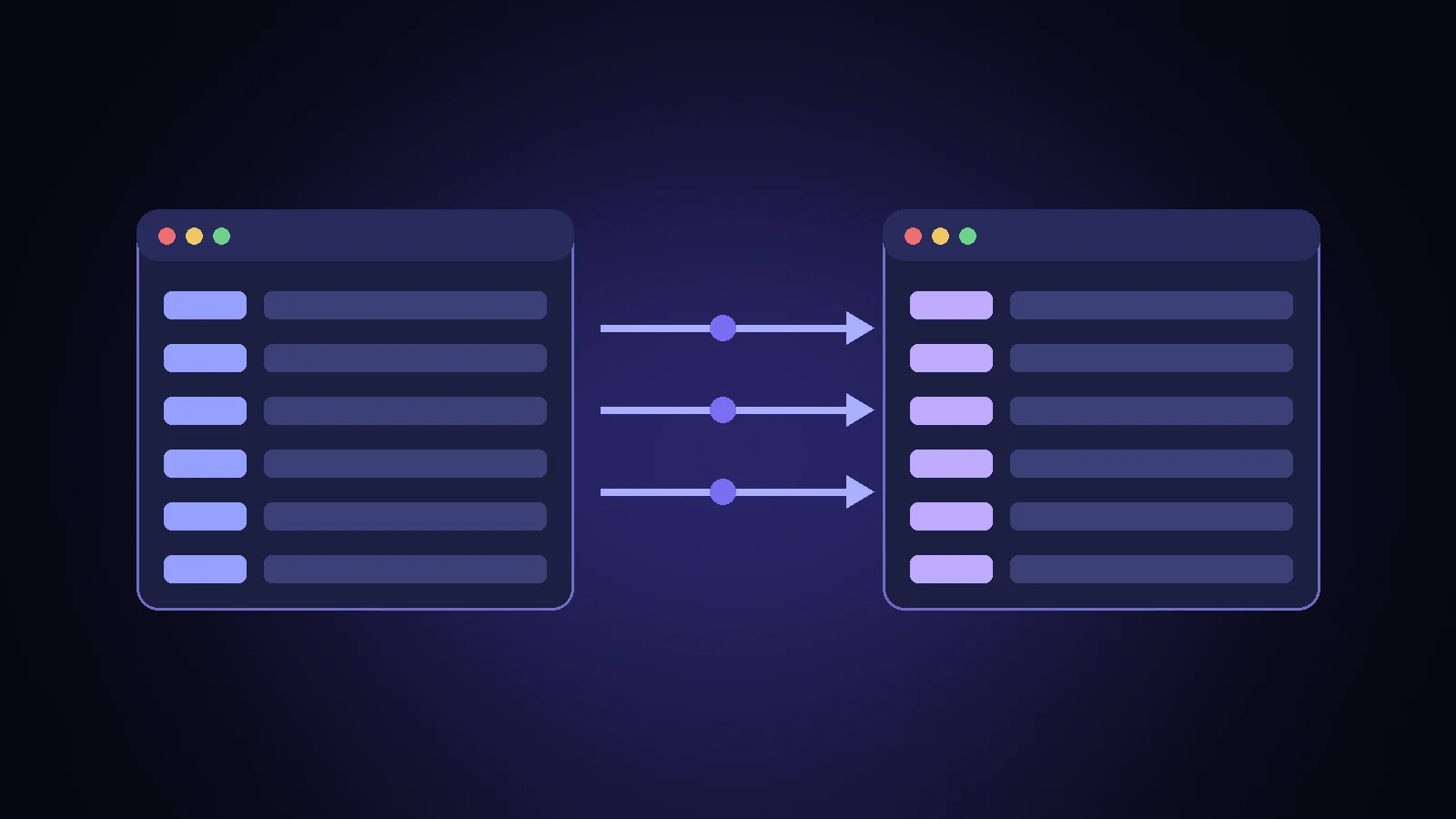
Ask anyone who runs the office side of a small business what eats their week, and retyping comes up fast. A customer fills in a web form, and someone copies the details into the CRM. A job gets booked, and someone types it into the calendar, then into the invoicing software, then into a spreadsheet the owner checks on Fridays.
None of these jobs is hard. That is the problem. They are small, constant and easy to get slightly wrong, and they quietly use up hours that could go to customers. This guide is for owners and office leads in Niagara, Hamilton and across Ontario who want to stop moving the same information by hand.
Why double data entry sticks around
Most businesses did not choose to retype data. It happened one tool at a time. You added an online booking form because customers asked for it. You switched accounting software. Someone started a spreadsheet to track something the other systems could not show. Each decision made sense on its own, and together they created a set of gaps that a person now fills by copying and pasting.
The cost is not only time. Retyping causes:
- Errors. A phone number with two digits swapped, a postal code in the wrong field, an invoice sent to last year's address.
- Delays. The enquiry sits in an inbox until someone has a spare ten minutes to enter it.
- Different versions of the truth. The CRM says one thing, the spreadsheet says another, and nobody is sure which is current.
- Single points of failure. When the person who does the copying is off sick, the information simply stops moving.
Step 1: Map where information gets retyped
Before you buy or connect anything, spend one week noticing. Ask everyone who handles customer or job information to jot down each time they copy something from one place into another. Keep it simple: what they copied, from where, to where, and roughly how often.
By Friday you will usually have a short list that looks something like this:
- Website contact form to CRM, about 15 times a week
- Accepted quote to job calendar, about 8 times a week
- Completed job to invoicing software, about 8 times a week
- New customer details to the mailing list, now and then, when someone remembers
That list is your real process, written down. It is also the starting point for any automation, because you cannot automate a hand off you have not described.
Step 2: Fix the process before you connect the tools
This is the step most people skip, and it is why many automations disappoint. If the process is messy, an automation just moves the mess faster.
For each item on your list, ask three questions:
- Does this step need to happen at all? Sometimes the spreadsheet exists only because one report was missing years ago. If your accounting software can now show the same thing, retire the spreadsheet instead of feeding it.
- Which system is the master? Pick one place where each type of information lives. Customer details live in the CRM. Invoices live in the accounting software. Everything else reads from those, rather than keeping its own copy.
- Is the information captured cleanly at the start? If your web form has one free text box called "Tell us about your project", no tool can reliably sort that into name, phone, address and job type. Splitting the form into proper fields is often the single biggest improvement.
Write the cleaned up version down in a few lines per hand off. That short description is what you will automate.
Step 3: Check what your current tools already do
Before adding anything new, look at the integrations your existing software already includes. Many booking, CRM and accounting tools have built in connections to each other. If your invoicing software can pull customer records straight from your CRM with a setting you have never switched on, that is the cheapest fix there is.
Built in connections are usually enough when you only need one or two simple links. They start to fall short when you need something in the middle, such as checking a value, routing different enquiries to different people, or sending one form submission to three places at once.
Step 4: Use a no code automation tool for the gaps
When the built in options run out, a no code automation platform can handle the hand offs between apps without custom programming.
Disclosure: some links in this post are affiliate links. If you sign up through them, Adapting Services may earn a commission at no cost to you. We only mention tools we would suggest to clients.
One we often suggest to clients is n8n, a workflow automation tool. You build a workflow on a visual canvas: a trigger, such as a new form submission, followed by steps, such as creating a contact in your CRM, adding a row to a sheet and posting a message to your team. It has ready made connections for many common business apps, and it can call other services through their APIs when there is no ready made connection. n8n can run in its own cloud or be self hosted on a server you control, which is worth knowing if you need to keep customer data in Canada.
Here is what that looks like for the example list above:
- Web form to CRM. When a form is submitted, the workflow creates or updates the contact in your CRM and sends a short alert to whoever handles new enquiries. Nobody copies anything.
- Accepted quote to calendar. When a quote is marked accepted, a draft job is added to the calendar with the customer's address and the scope from the quote.
- Completed job to invoicing. When the job is marked done, a draft invoice is created in your accounting software for someone to review and send. Keeping a person on that last step is sensible, because invoices are where mistakes cost the most.
A few honest notes before you start:
- Someone has to own it. Automations need occasional checking when an app changes a field or a login expires. If nobody on your team will look after them, plan for outside help.
- Start with one hand off. Pick the item with the highest weekly count from your list, automate it, and let it run for a couple of weeks before adding the next.
- Watch for personal information. If your workflows move customer data, make sure you know which apps it passes through and that this fits your privacy obligations under PIPEDA.
- Check current plans and hosting options on n8n's own site before you commit, since they change.
Step 5: Measure whether it worked
Go back to your original list. For each hand off you automated, note how many times a week it used to happen by hand and how many times someone still had to step in. After a month you will know, from your own numbers, whether the automation is saving time and whether it is reliable enough to build on.
If something keeps breaking, that is useful information too. It usually points back to Step 2: the form still collects messy data, or two systems still both think they are the master.
Where AI fits
Once the basic hand offs run on their own, AI can take on the parts that need judgement, such as reading a free text enquiry and suggesting which service it is about, or summarising a long email before it goes into the CRM. These work best on top of a clean, connected process, not as a replacement for one. That is why we start with the boring plumbing.
Find your retyping hot spots with the free Process Scan
Not sure which hand offs in your business are worth fixing first? Take the free Process Scan. It takes a few minutes, walks through how work moves through your business today, and points out where information is being copied by hand and what to tackle before you add any new tools.